Merge JPG To JPG | Combine Multiple Images Online
Upload Images
Click to browse or drag & drop your images here
JPG, JPEG and PNG supported
Want to merge JPG to JPG? Then you're at the right place. Our Merge JPG tool combines multiple images, whether it be your photo with a signature or any other document that needs to be merged. Using our tool, you can export the output image into various formats, such as PDF, JPEG, and JPG. The image can be combined horizontally and vertically with the background, adding features.
This free online JPG merger works directly in your browser, making it easy to combine images without installing software. You can use it for photos, screenshots, scanned documents, certificates, notes, and other images that need to be joined into a single file.
Merge JPG Images Online
With our online JPG merger, you can combine multiple images into one file in just a few steps. Upload your images, arrange them in the order you want, select how you want them merged, and export the finished image.
The tool supports JPG to JPG merging as well as combinations of JPG, JPEG, and PNG images. Your original images are not permanently changed during the merging process.
How to Merge JPG Images
-
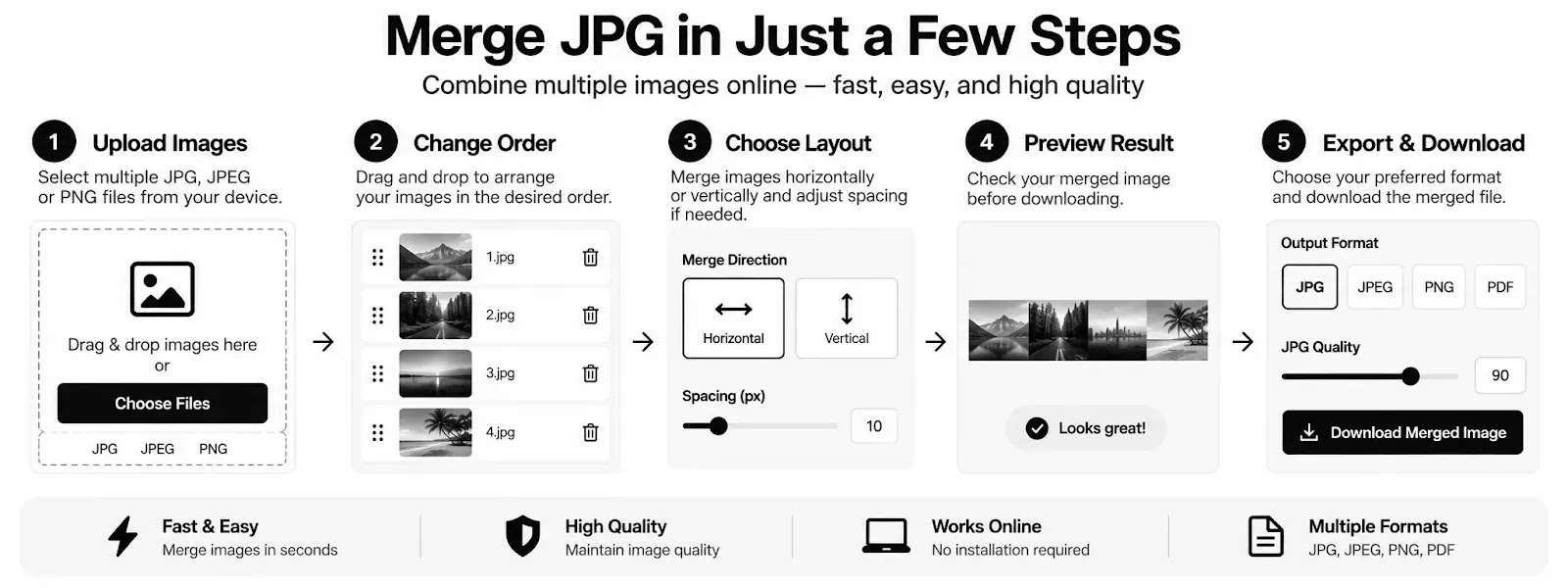
Upload your images – Select multiple JPG, JPEG, or PNG files from your device.
-
Change the image order – Drag and drop the thumbnails to arrange the images in your preferred order.
-
Choose the layout – Merge your images horizontally or vertically.
-
Adjust the spacing – Add space between images if required.
-
Preview the result – Check the merged image before exporting.
-
Choose the format – Download the result as JPG, JPEG, PNG, or PDF.
Merge Images Horizontally or Vertically
The tool gives you control over how your images are combined.
Horizontal merging places your images next to each other from left to right. This can be useful when creating a wide image or combining screenshots side by side.
Vertical merging places your images from top to bottom. It is useful for joining screenshots, scanned pages, notes, receipts, or other images into one long image.
Download as JPG, JPEG, PNG, or PDF
After merging your images, you can select the format that best matches your needs.
-
JPG: Suitable for photographs and smaller image files.
-
JPEG: Useful when you need a standard JPEG image format.
-
PNG: Better when you want a lossless image format.
-
PDF: Convenient when you need to share or print the merged result as a document.
The tool also includes a JPG quality setting so you can balance image quality and file size when exporting JPG or JPEG files.
Maintain High-Quality Images
When combining images, size and quality can affect the final result. The merger creates a new canvas based on the dimensions of the uploaded images and places them according to your selected layout.
For JPG and JPEG exports, you can adjust the quality setting before downloading. A higher quality setting generally produces a larger file, while a lower setting can reduce the file size.
For the best results, use source images with suitable resolution and avoid repeatedly converting the same JPG image.
What Can You Use a JPG Merger For?
A JPG merger can be useful for many everyday tasks, including:
-
Combining multiple photos into one image
-
Joining screenshots
-
Combining scanned documents
-
Putting certificates into one image
-
Joining pages of notes
-
Combining receipts
-
Creating before-and-after image comparisons
-
Joining images for social media
-
Creating a single image from multiple JPG files
-
Combining JPG images before converting or sharing them as PDF
JPG to JPG Online
If you need a simple JPG to JPG workflow, upload your JPG files and merge them into a single image. You can rearrange the images, choose horizontal or vertical merging, and export the final result as JPG or JPEG.
Because the tool works online in your browser, there is no need to install a separate image-editing application just to combine a few images.
Does Merging JPG Images Reduce Quality?
The effect on quality depends on the export format and settings. When exporting as JPG or JPEG, compression can affect the final image. You can use the quality control to choose a higher-quality export when image clarity is important.
PNG export can be preferable when you want to avoid JPEG compression, while PDF is useful when your final goal is document sharing or printing.
Merge JPG Files by Changing Their Order
The order of your images matters when creating a combined file. The image merger lets you rearrange uploaded images before creating the final result.
Simply drag an image to a different position in the image list. The preview updates according to the new order, allowing you to check the final arrangement before downloading.
Free Online JPG Merger
You can merge JPG images online without installing desktop software. The tool provides the essential controls needed to combine images, change their order, select the merge direction, adjust spacing, and export the finished file.
Whether you need a quick JPG to JPG merge or want to combine JPG and PNG images into a PDF, the tool provides a straightforward way to create one file from multiple images.